

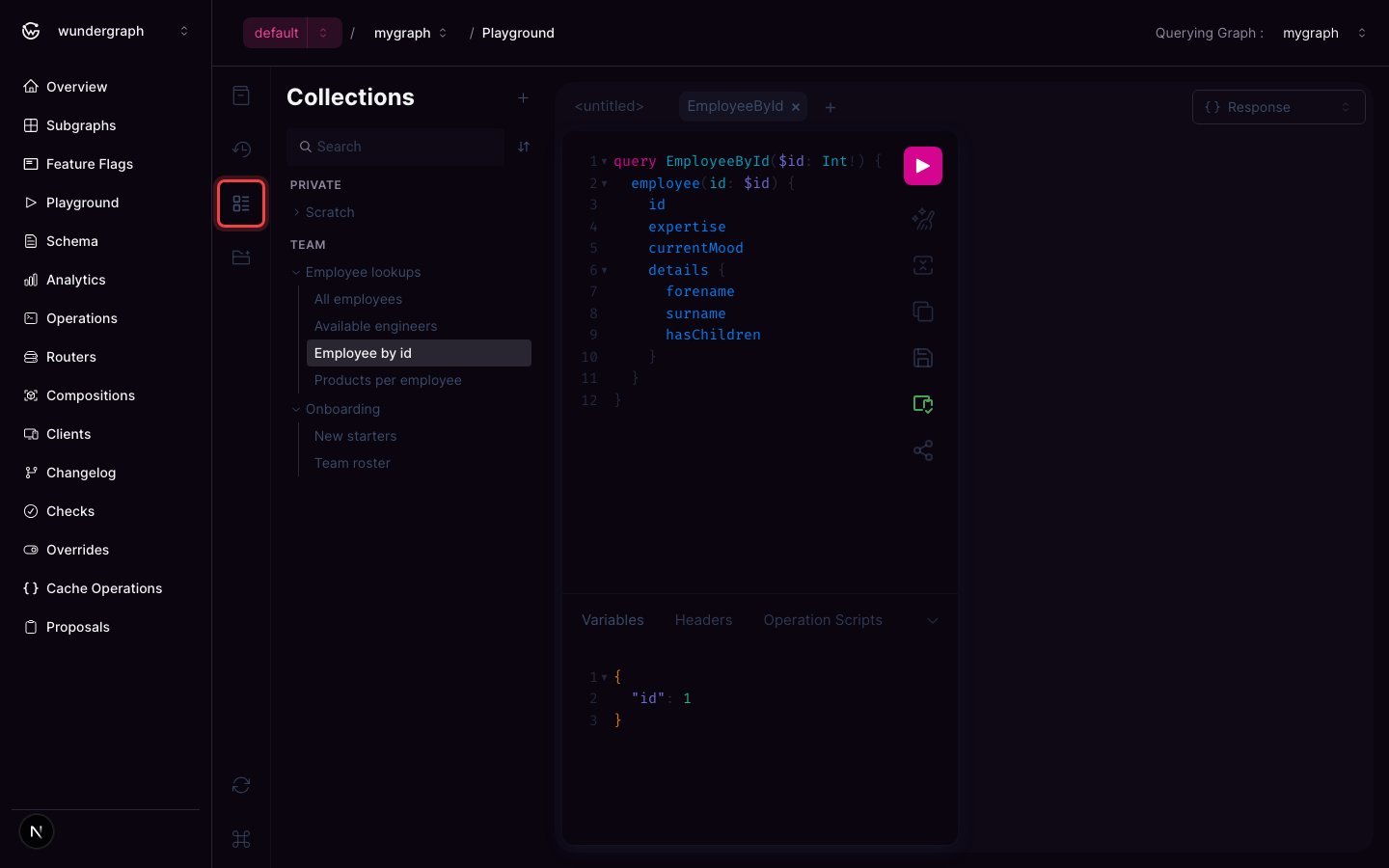
The Collections panel
Private and team collections
Every collection is one of two kinds, chosen when you create it.
Collections are grouped by scope in the panel, private first.
Creating a team collection requires write access to the graph. Without it, the scope choice is not offered and every collection you create is private.
Creating a collection
1
Click the + button in the Collections panel header
The New collection dialog opens.
2
Give the collection a name
Names are up to 100 characters and do not have to be unique.
3
Choose who can see it
Private keeps it to yourself. Team shares it with everyone who can see the graph, and cannot be undone.
4
Click Create
The collection appears in the panel under its group.
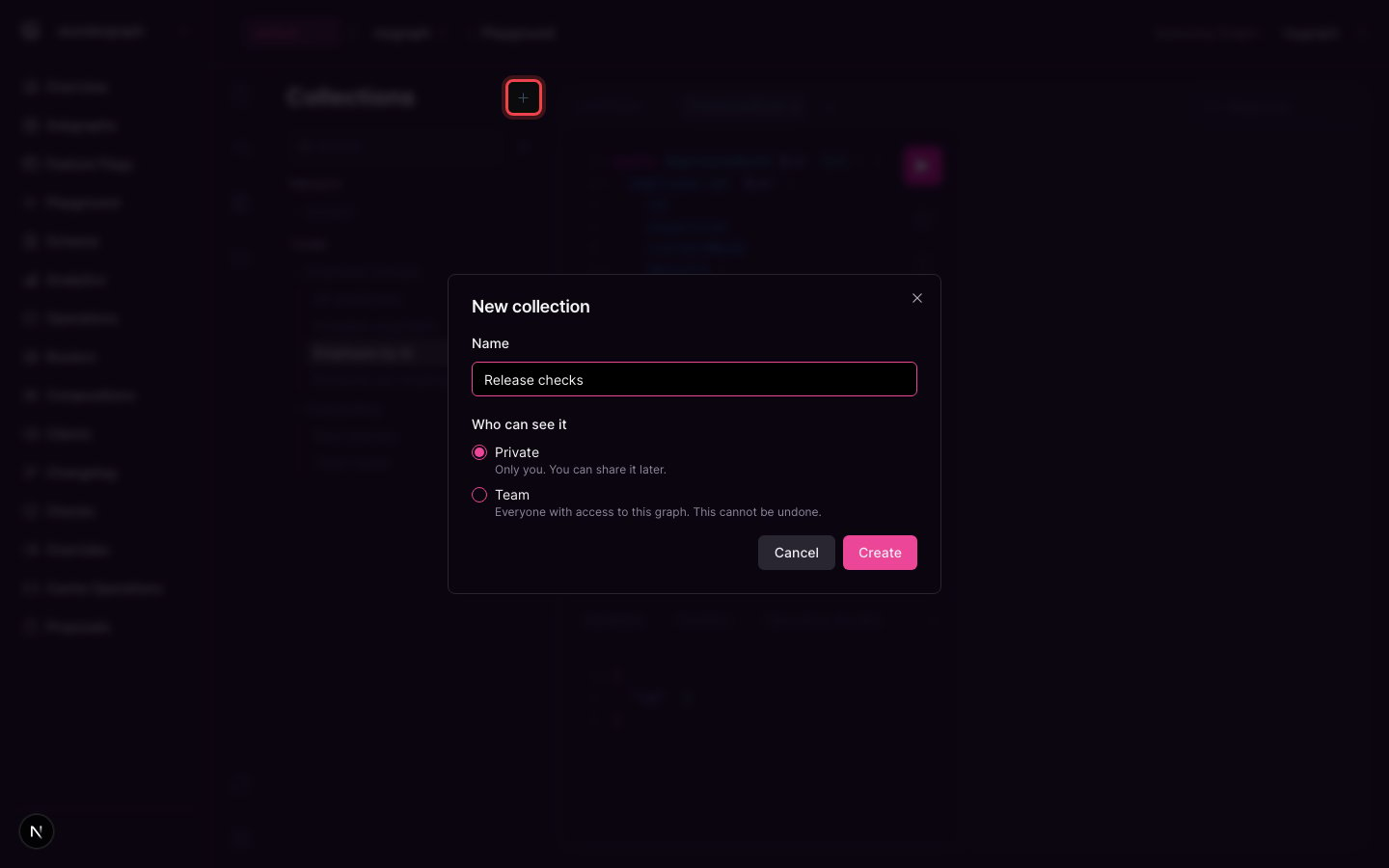
Creating a collection
Saving an operation
Write a query in the Playground, then open the save menu in the editor toolbar.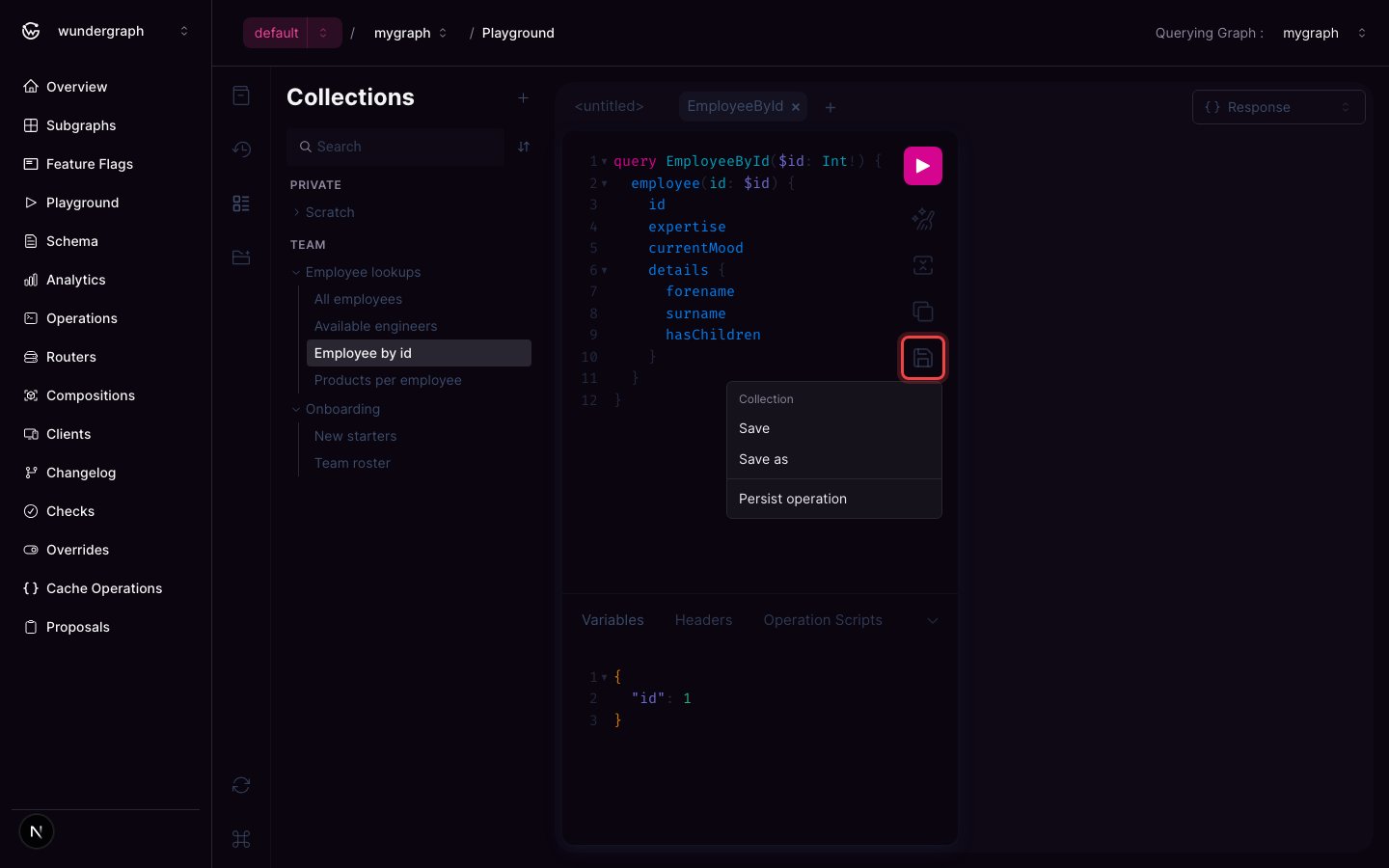
The save menu in the editor toolbar
- Save updates the operation the current tab is already bound to. It only appears once the tab holds a saved operation.
- Save to collection (or Save as when the tab is already bound) creates a new saved operation.
- Persist operation is unrelated to collections. See persisted operations.
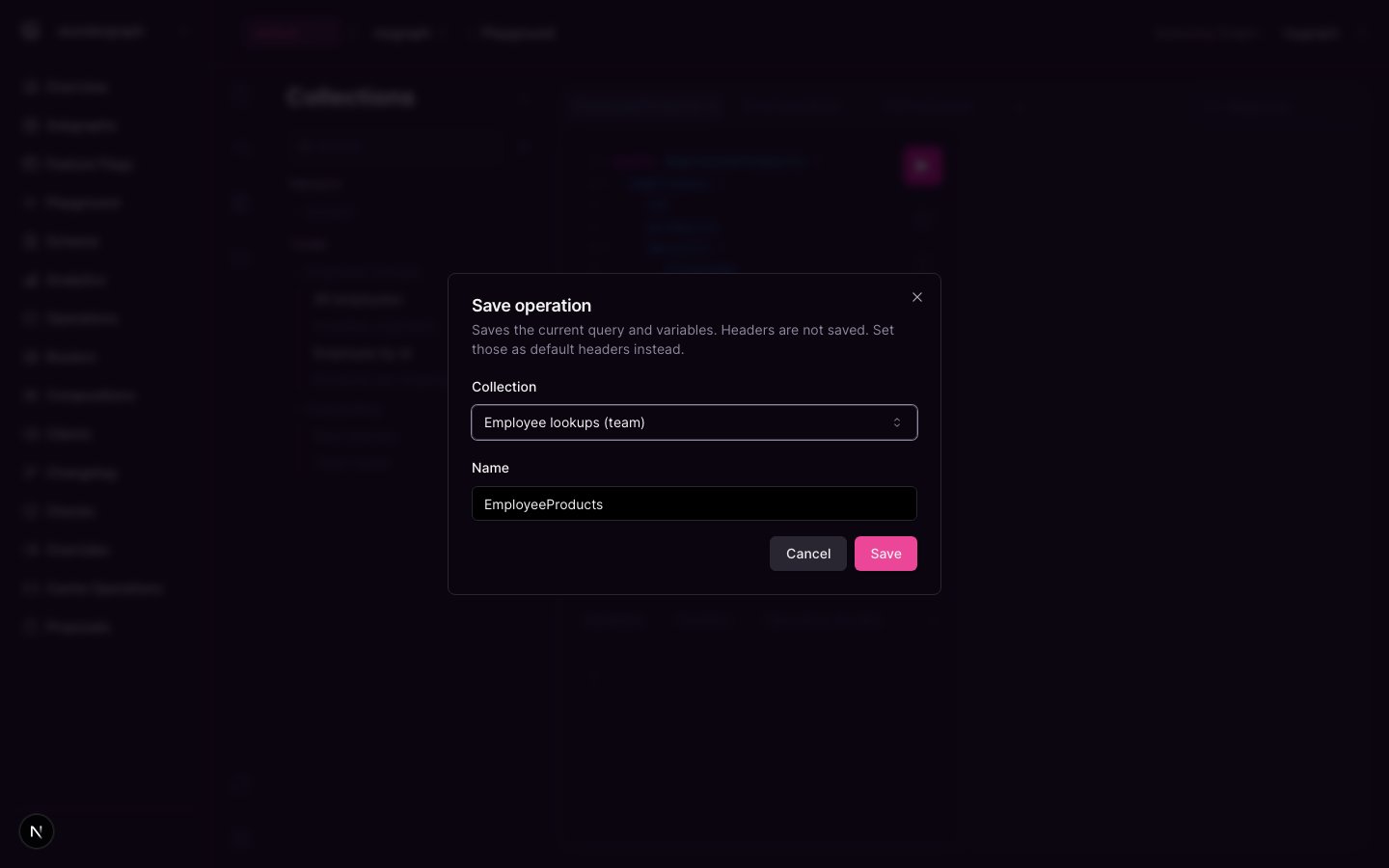
Saving an operation into a collection
When someone else saved first
Team collections can be edited by anyone with write access to the graph, so two people can edit the same operation at once. Saving checks the version you opened against the stored one. If they differ, the save is refused and nothing is overwritten.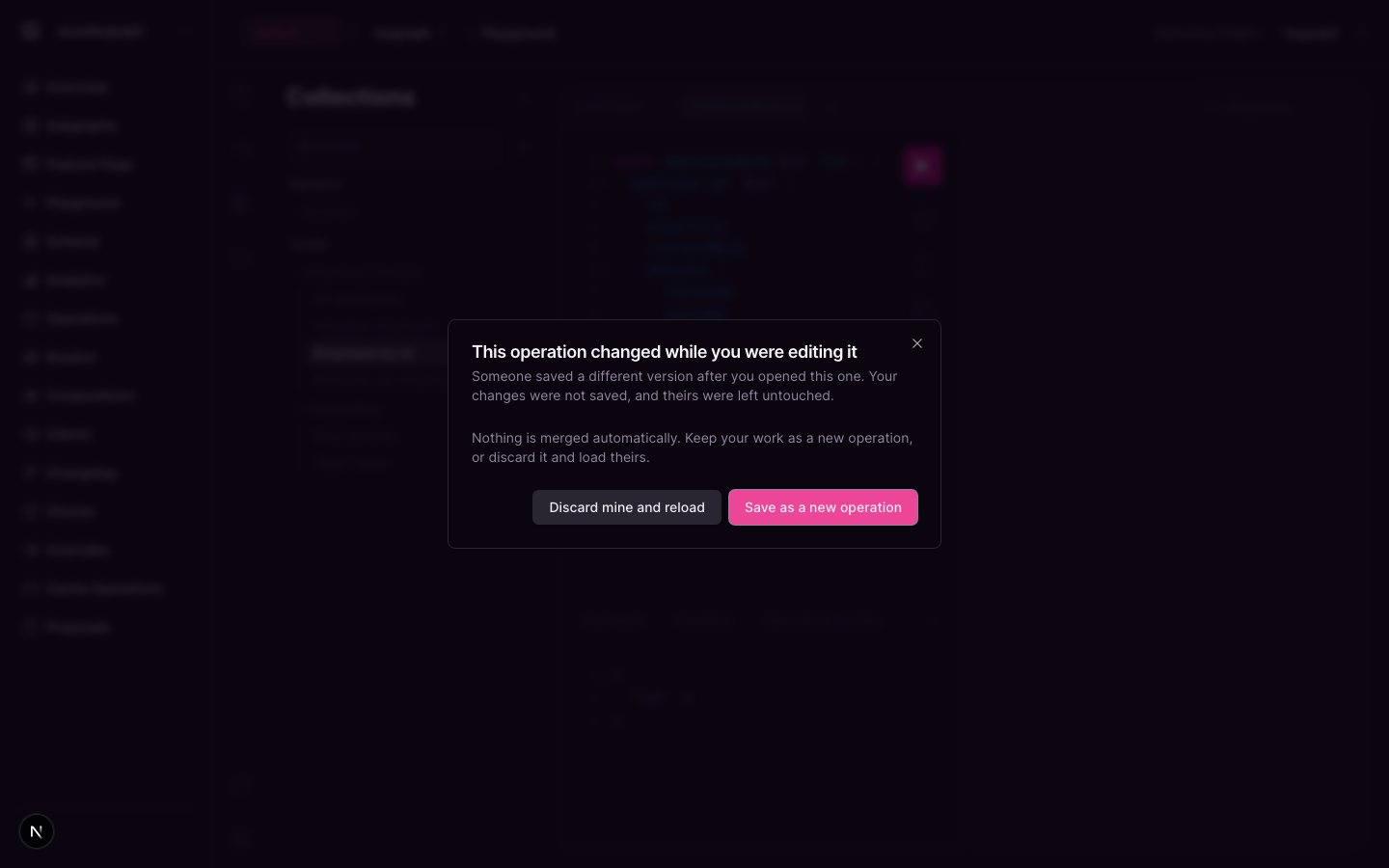
A concurrent edit was detected
- Save as a new operation keeps your work under a new name and leaves theirs untouched.
- Discard mine and reload replaces your editor with the stored version.
Sharing a collection with the team
Open the collection’s menu and choose Share with team. Everyone who can view the graph will see the collection, and everyone who can edit the graph will be able to change its operations.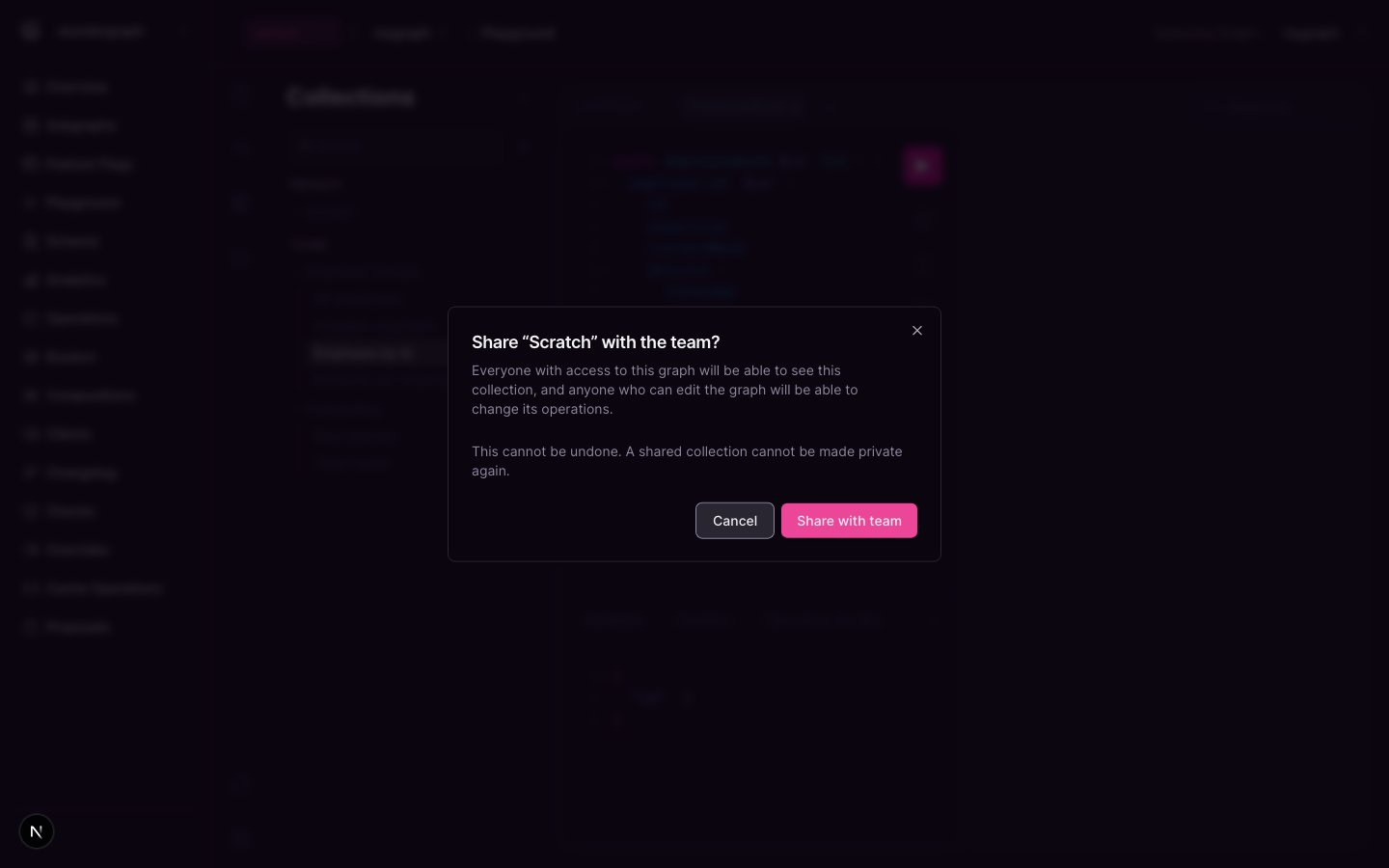
Sharing a private collection
Finding an operation
Search filters collections and their operations by name as you type. A collection whose own name matches keeps all of its operations. A collection matched only through an operation shows just the operations that matched.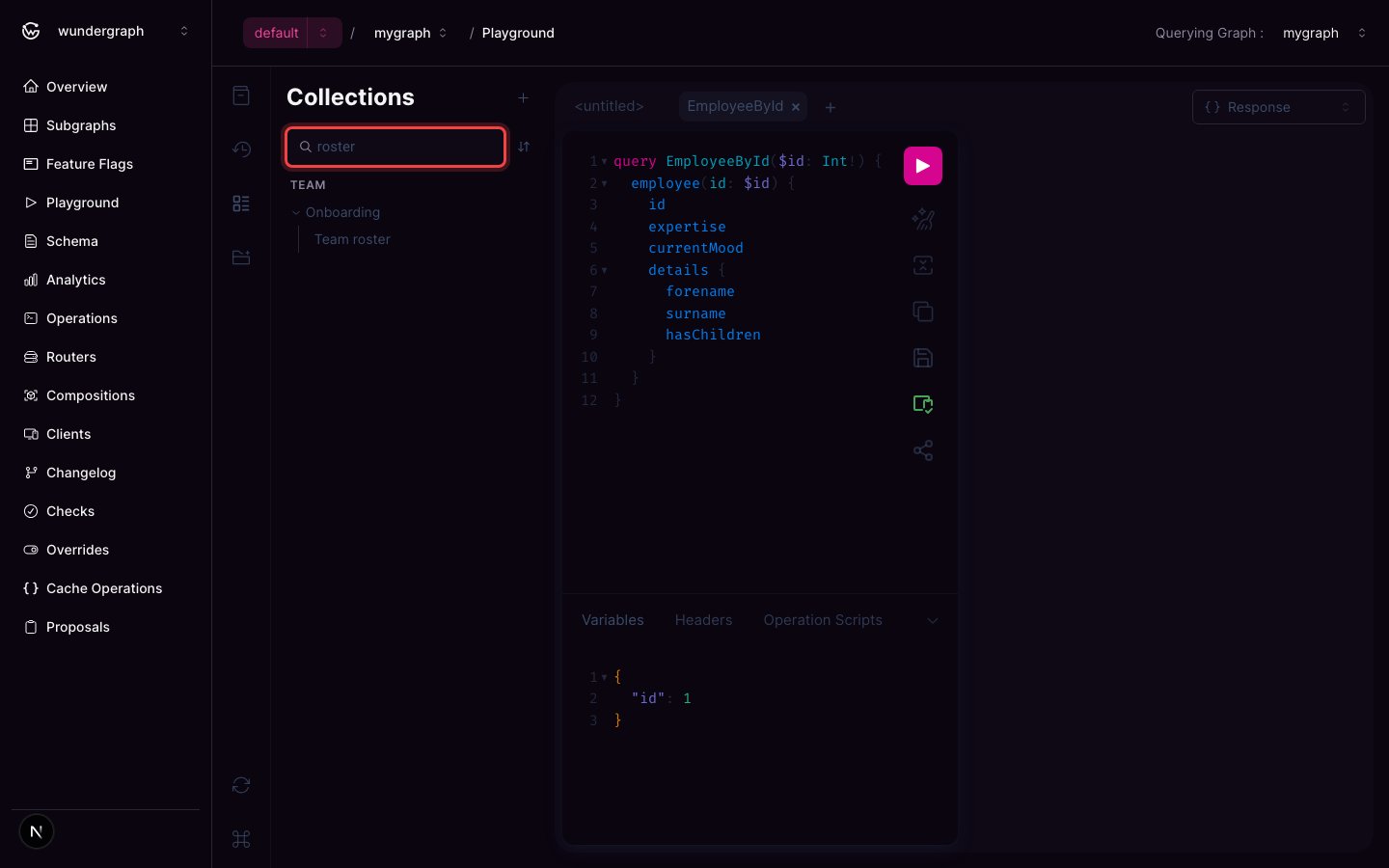
Searching by operation name
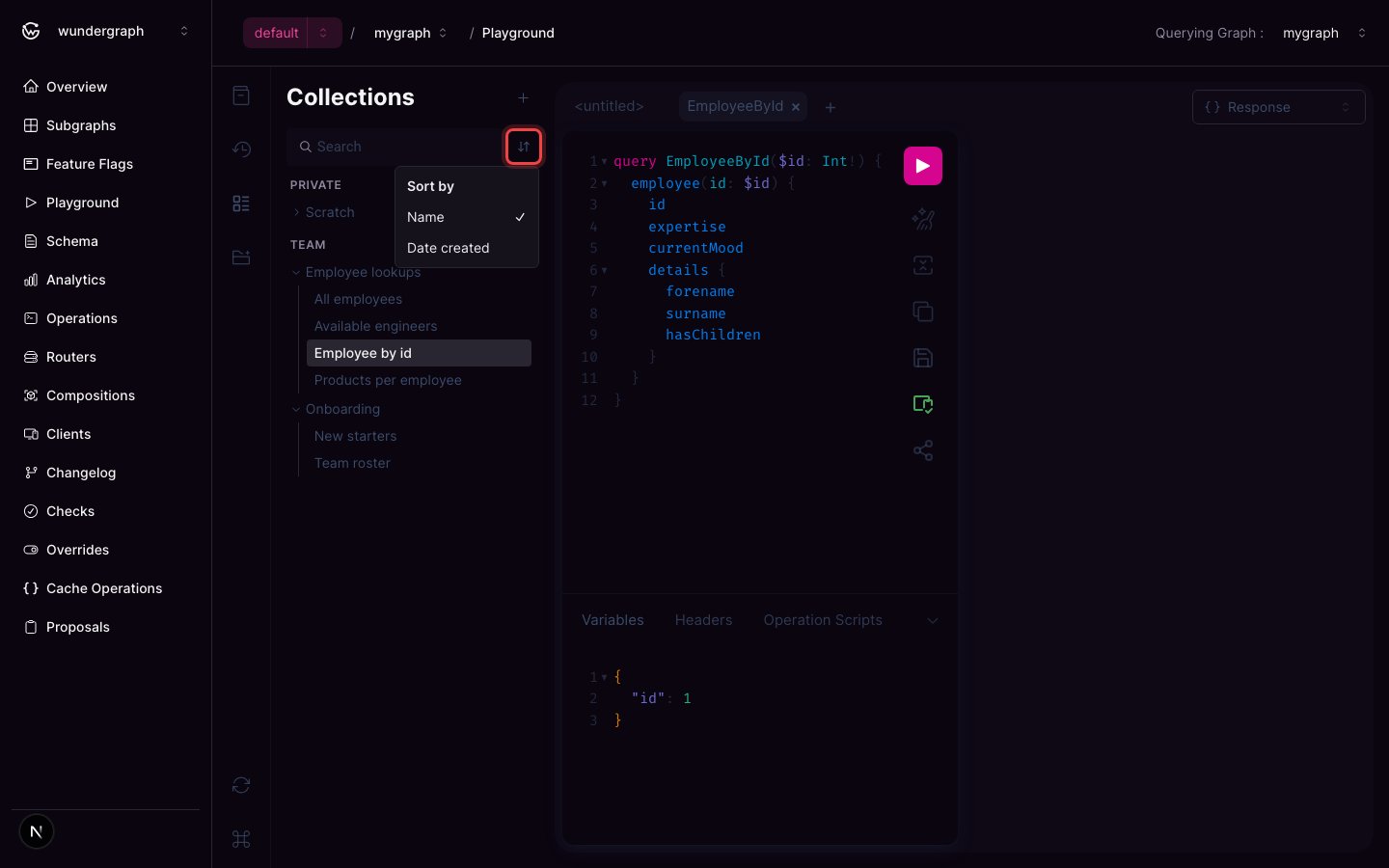
Sorting the list
Linking to a collection or an operation
Copy link in a collection’s or an operation’s menu copies a URL that points at it. Opening that link selects the Collections panel, expands the collection, and opens the operation. The link carries only the collection and operation identifiers, not the contents of your editor, so it stays short and does not leak the tab you happen to have open. Whoever opens the link still needs access. A link to a private collection, or to a collection on a graph they cannot view, shows a short notice that the collection is unavailable rather than revealing that it exists.Renaming and deleting
Both collections and operations have Rename and Delete in their menus.- Renaming an operation changes its label in the panel. It does not change the operation name inside the document.
- Deleting a collection deletes the operations inside it. The confirmation says how many will go with it, and whether the collection is shared with your team.
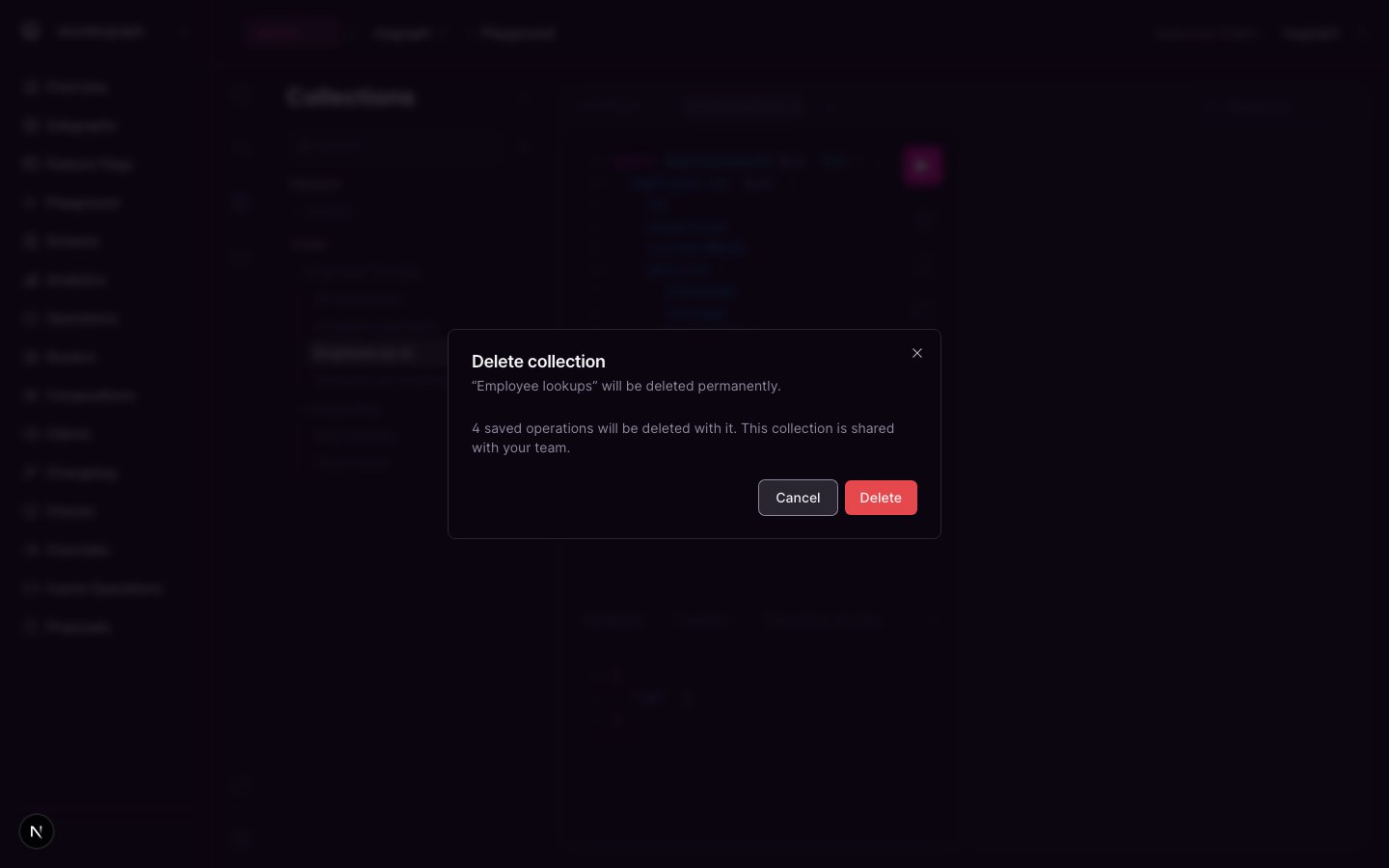
Deleting a collection that holds operations
Permissions
Actions you cannot perform are not shown. A read-only member sees team collections and can open their operations, but gets no save, rename, share or delete controls.