> ## Documentation Index
> Fetch the complete documentation index at: https://cosmo-docs.wundergraph.com/llms.txt
> Use this file to discover all available pages before exploring further.
# Okta
> Configure SCIM with Okta.
### Steps to set up SCIM with Okta
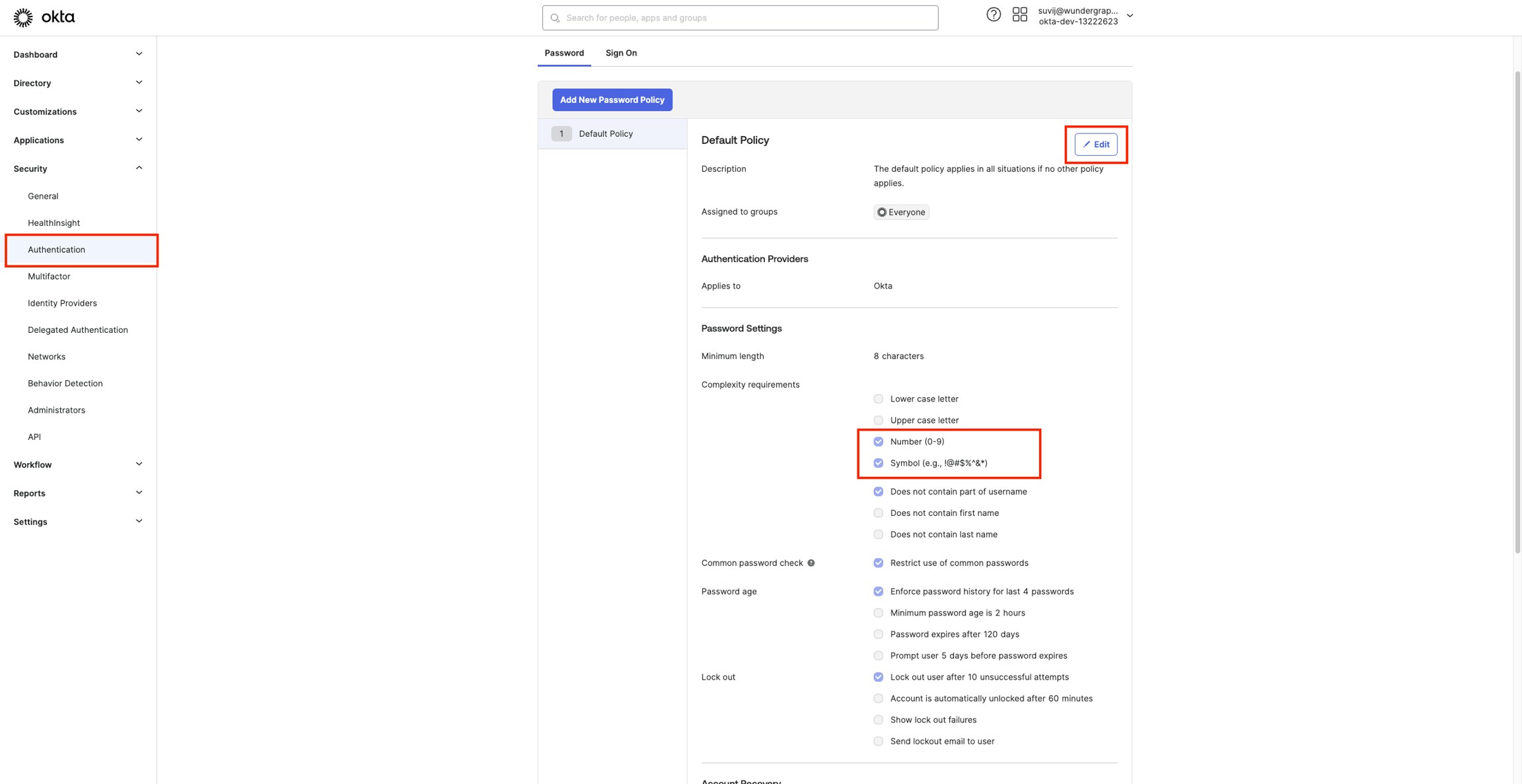
Set up the password policy (password should contain at least one number and one symbol), if using the **Classic Engine on Okta** follow the below steps**,** or if using the **OIE engine,**follow the steps as mentioned in this [**Okta guide**](https://help.okta.com/oie/en-us/content/topics/identity-engine/authenticators/configure-password.htm)**.**
* Navigate to Security -> Authentication on your Okta Administrator Dashboard.
* Click Edit and update the password policy by enabling Number and Symbol, then click on Update Policy.
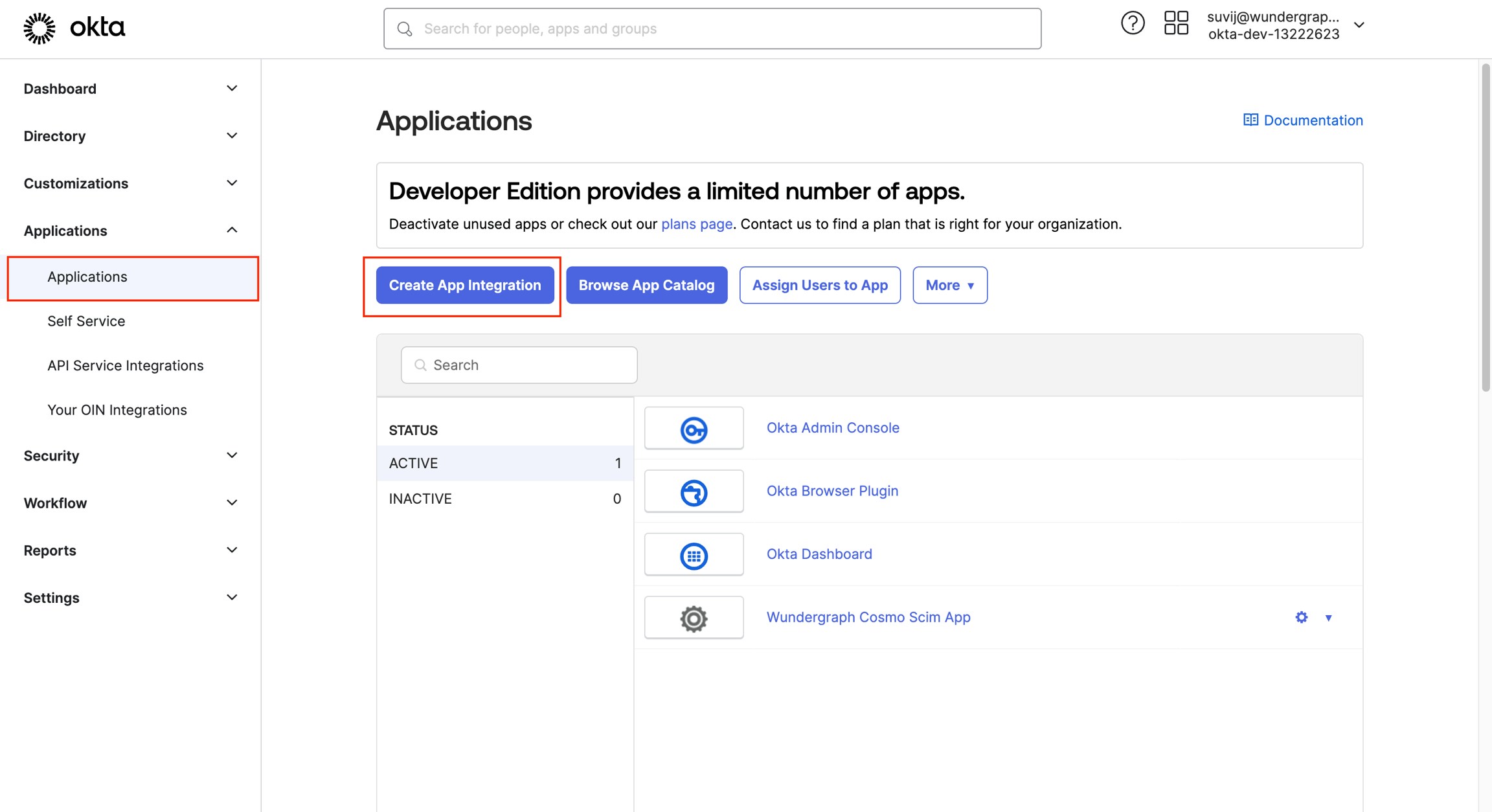
 Navigate to the Applications view within your Okta Administrator Dashboard.
Click on **Create App Integration**.
Navigate to the Applications view within your Okta Administrator Dashboard.
Click on **Create App Integration**.
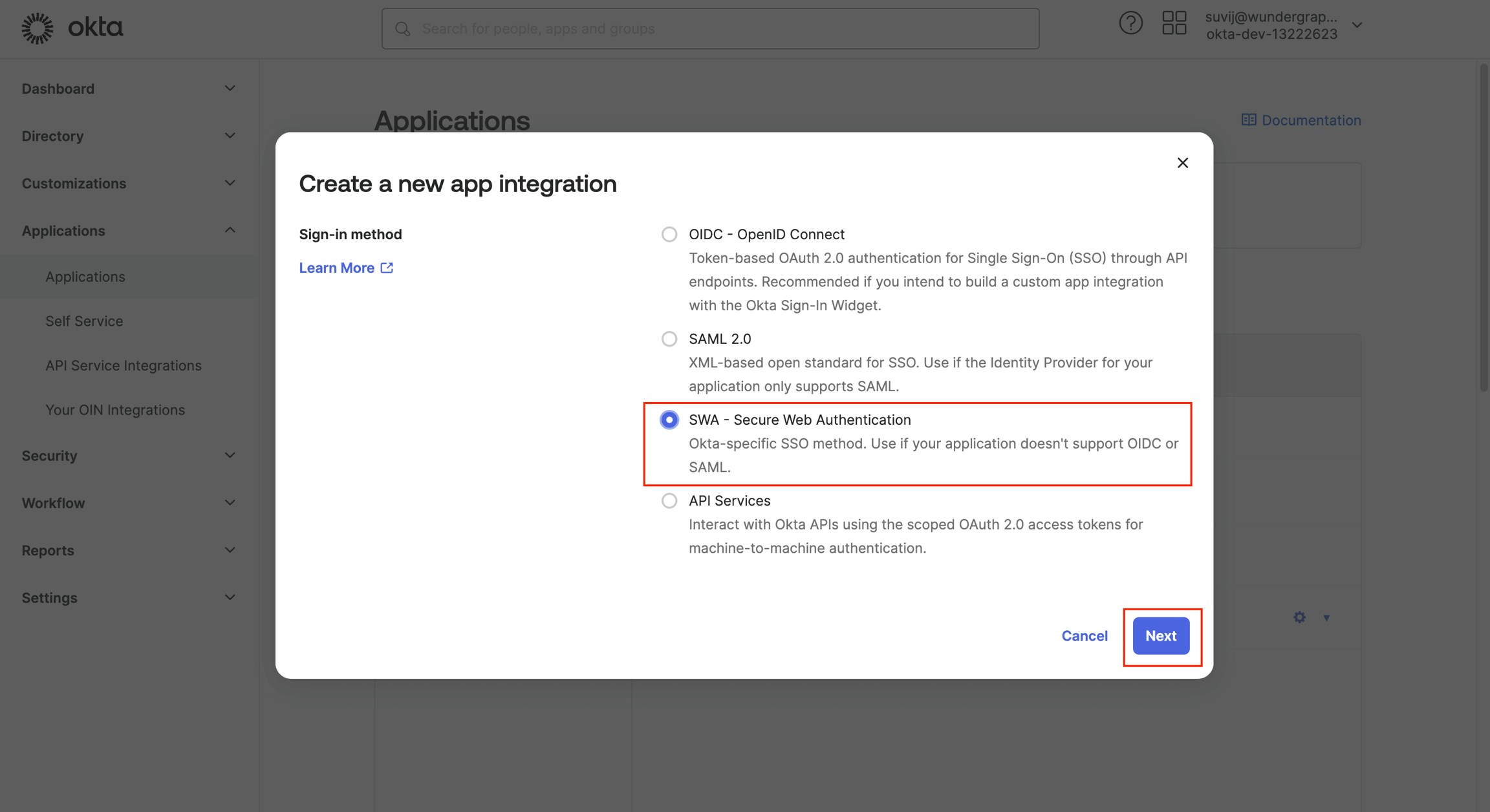
 A dialog appears, select SWA - Secure Web Authentication and then click **Next.**
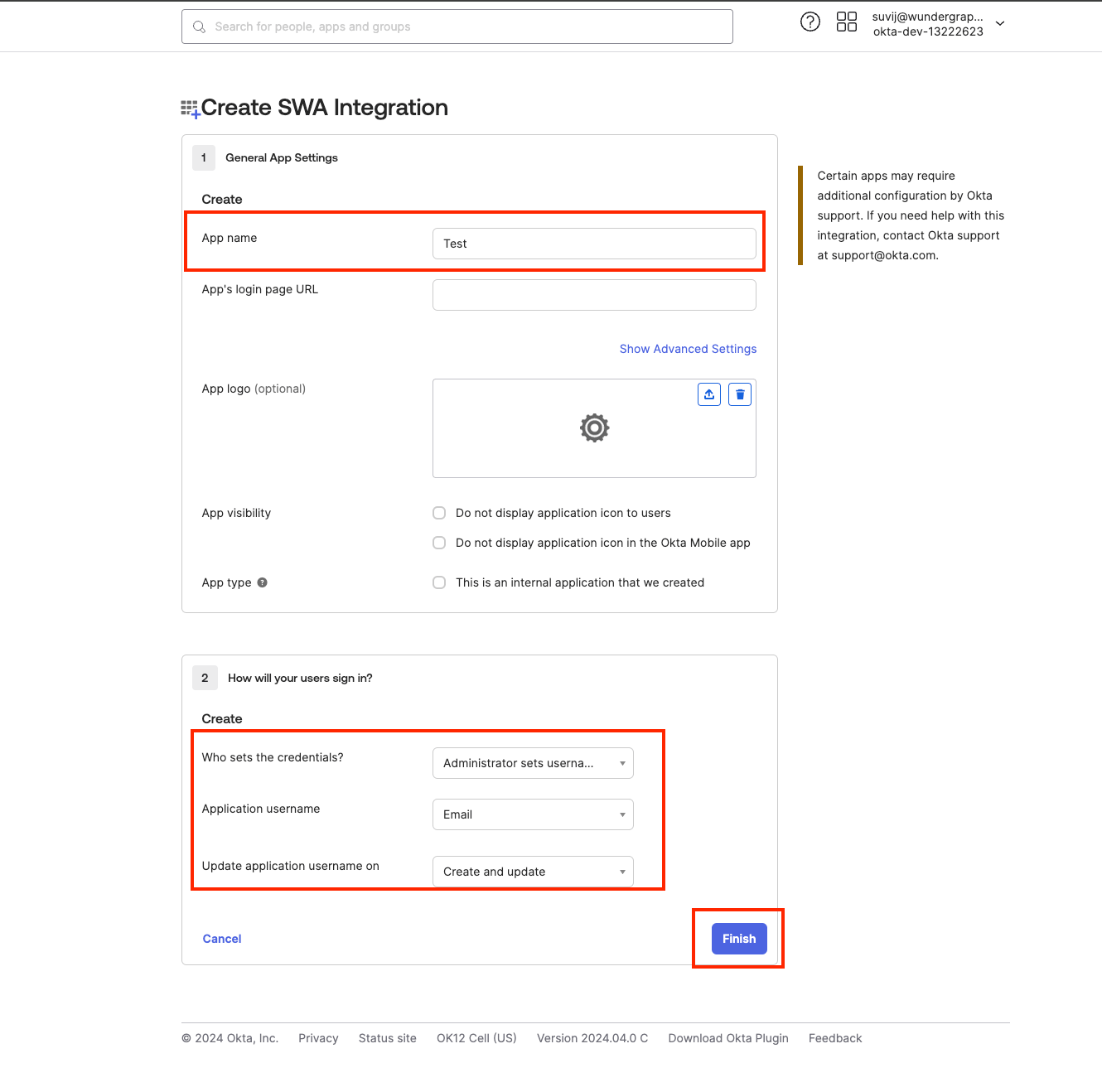
 Now give the app a name and populate the app's login URL with [**https://cosmo.wundergraph.com/login**](https://cosmo.wundergraph.com/login)**.**
For "**Who sets the credentials**", select **Administrator sets username, user sets password.**
For the **application username**, select **Email** and then click **Finish.**
Now give the app a name and populate the app's login URL with [**https://cosmo.wundergraph.com/login**](https://cosmo.wundergraph.com/login)**.**
For "**Who sets the credentials**", select **Administrator sets username, user sets password.**
For the **application username**, select **Email** and then click **Finish.**
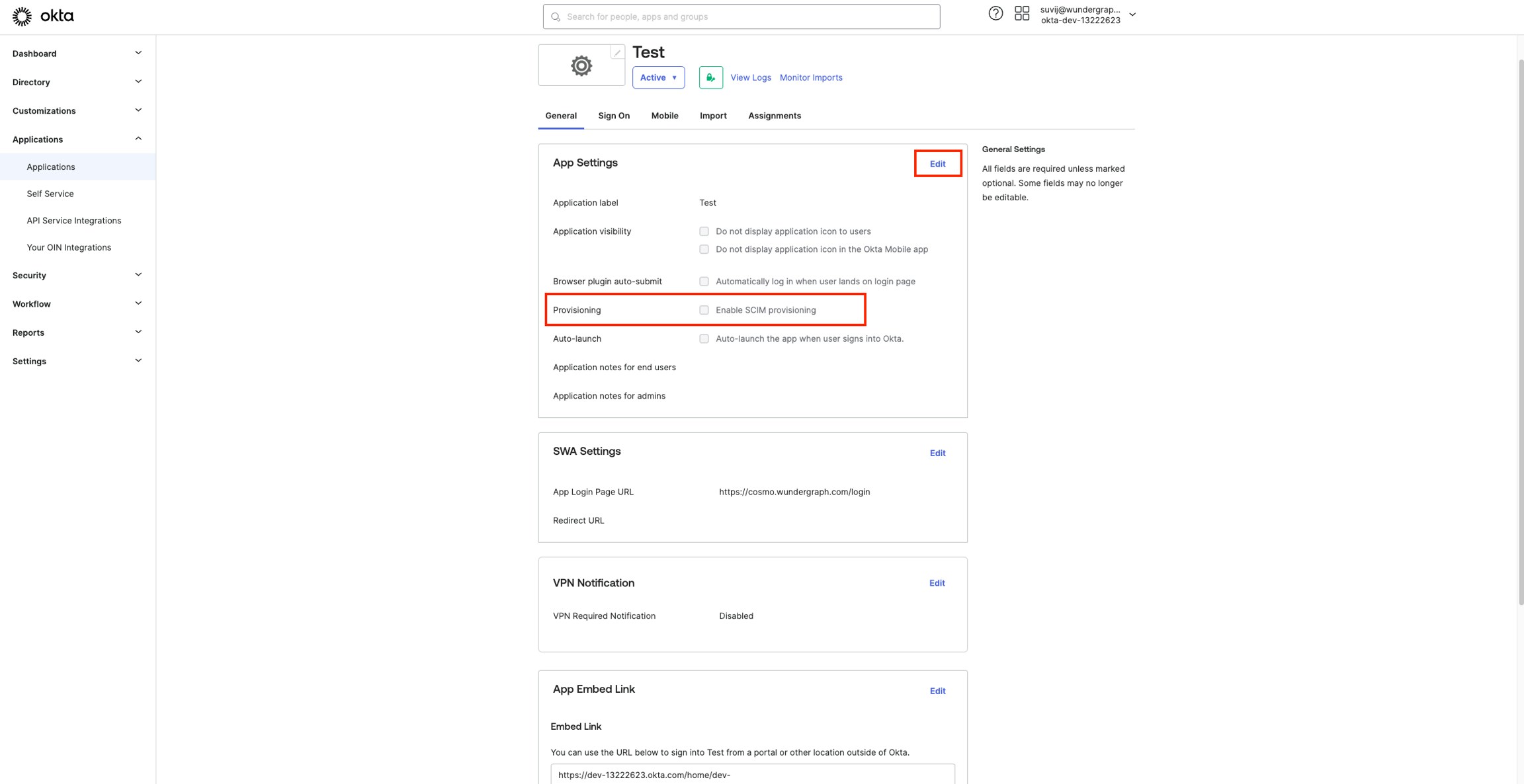
 Now navigate to the **General** tab, click on **Edit** in **App settings.**
Enable **SCIM provisioning**and then click on **Save.**
Now navigate to the **General** tab, click on **Edit** in **App settings.**
Enable **SCIM provisioning**and then click on **Save.**
 Navigate to the settings page on WunderGraph Cosmo and enable **SCIM.**
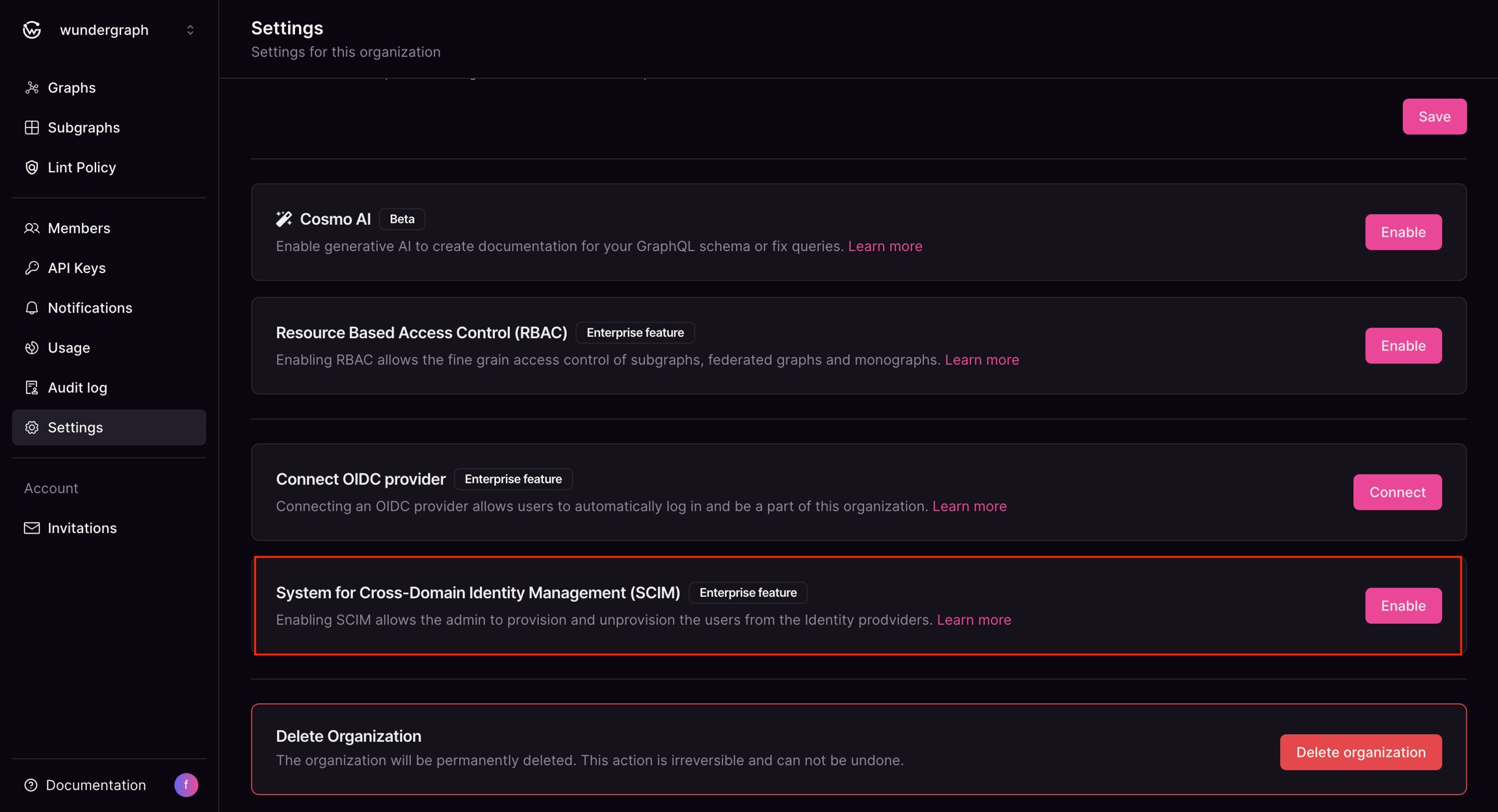 Once SCIM is enabled, you will be provided with a **SCIM Server URL,**copy it**.**
Navigate to the API Keys page on WunderGraph Cosmo and click on New API Key.
Provide the key with a name, select **Never** for **Expires,** then select **SCIM** under **Permissions**, then click on **Generate API key.**
Once SCIM is enabled, you will be provided with a **SCIM Server URL,**copy it**.**
Navigate to the API Keys page on WunderGraph Cosmo and click on New API Key.
Provide the key with a name, select **Never** for **Expires,** then select **SCIM** under **Permissions**, then click on **Generate API key.**
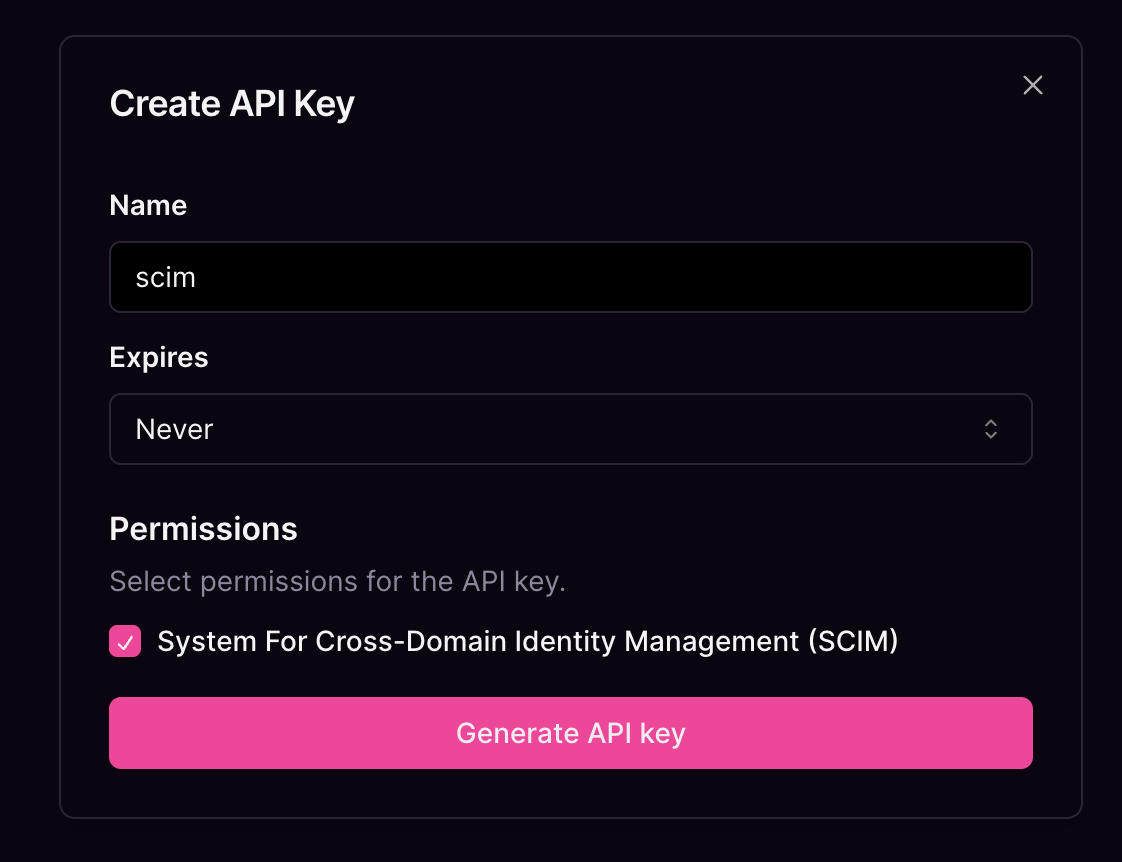 Copy the API key provided.
Navigate to the provisioning tab of the app created on okta, then click on **Edit**.
Copy the API key provided.
Navigate to the provisioning tab of the app created on okta, then click on **Edit**.
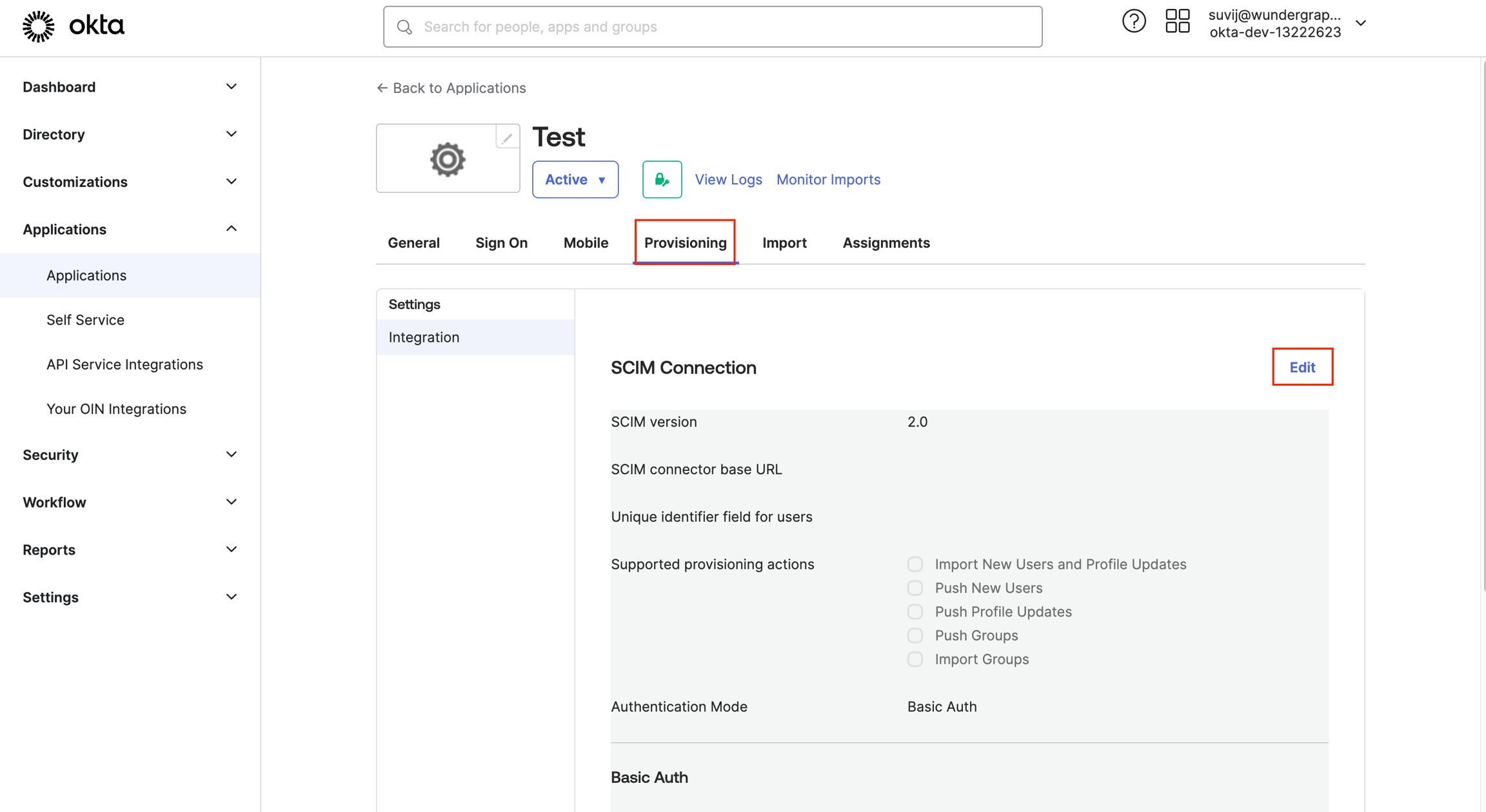 Populate the **SCIM connector base URL** with the copied **SCIM server URL** .
Populate the **Unique identifier field for users** with **"email".**
Select **Import New Users and Profile Updates, Push New Users and Push Profile Updates** for **Supported provisioning actions.**
Select **HTTP Header**for **Authentication Mode.**
Populate the **Authorization** field under HTTP Header with the above-copied API key.
Populate the **SCIM connector base URL** with the copied **SCIM server URL** .
Populate the **Unique identifier field for users** with **"email".**
Select **Import New Users and Profile Updates, Push New Users and Push Profile Updates** for **Supported provisioning actions.**
Select **HTTP Header**for **Authentication Mode.**
Populate the **Authorization** field under HTTP Header with the above-copied API key.
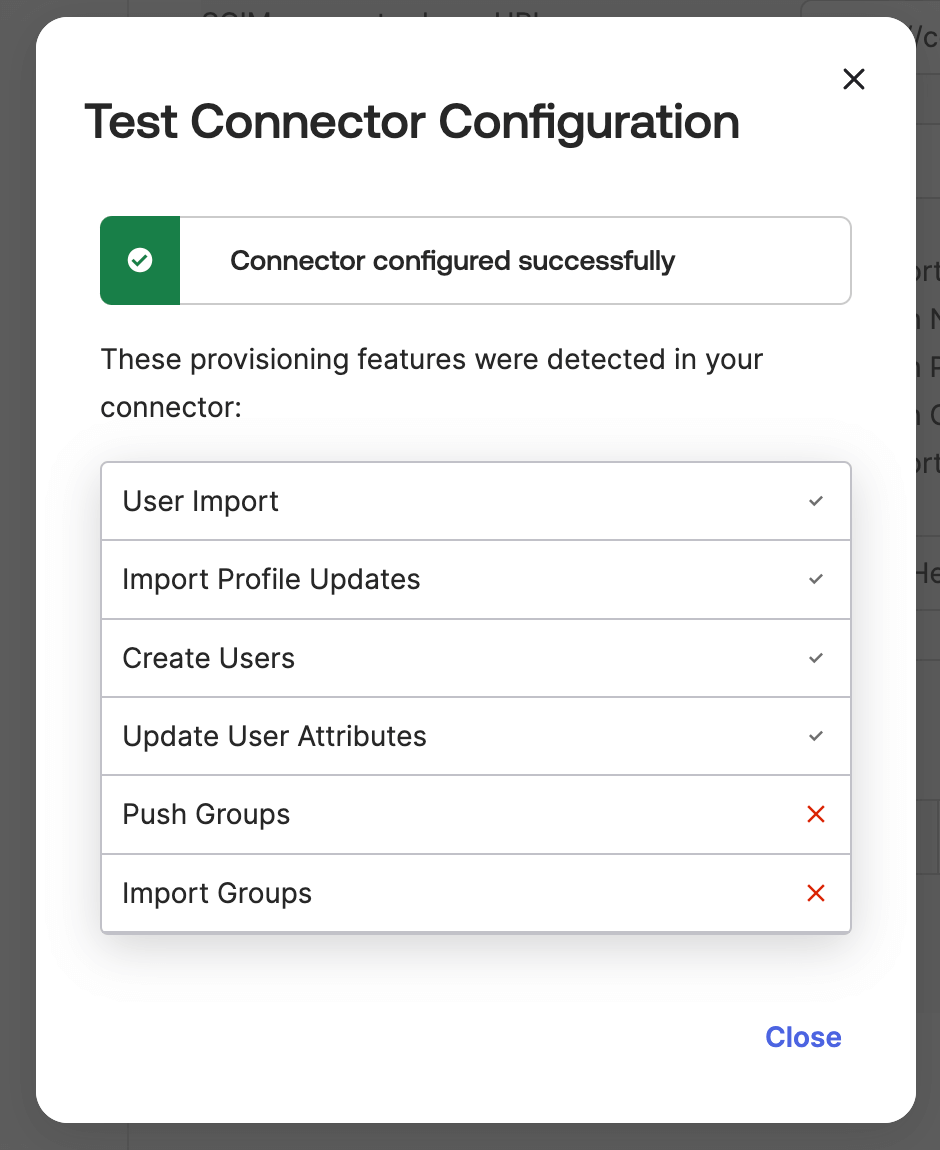
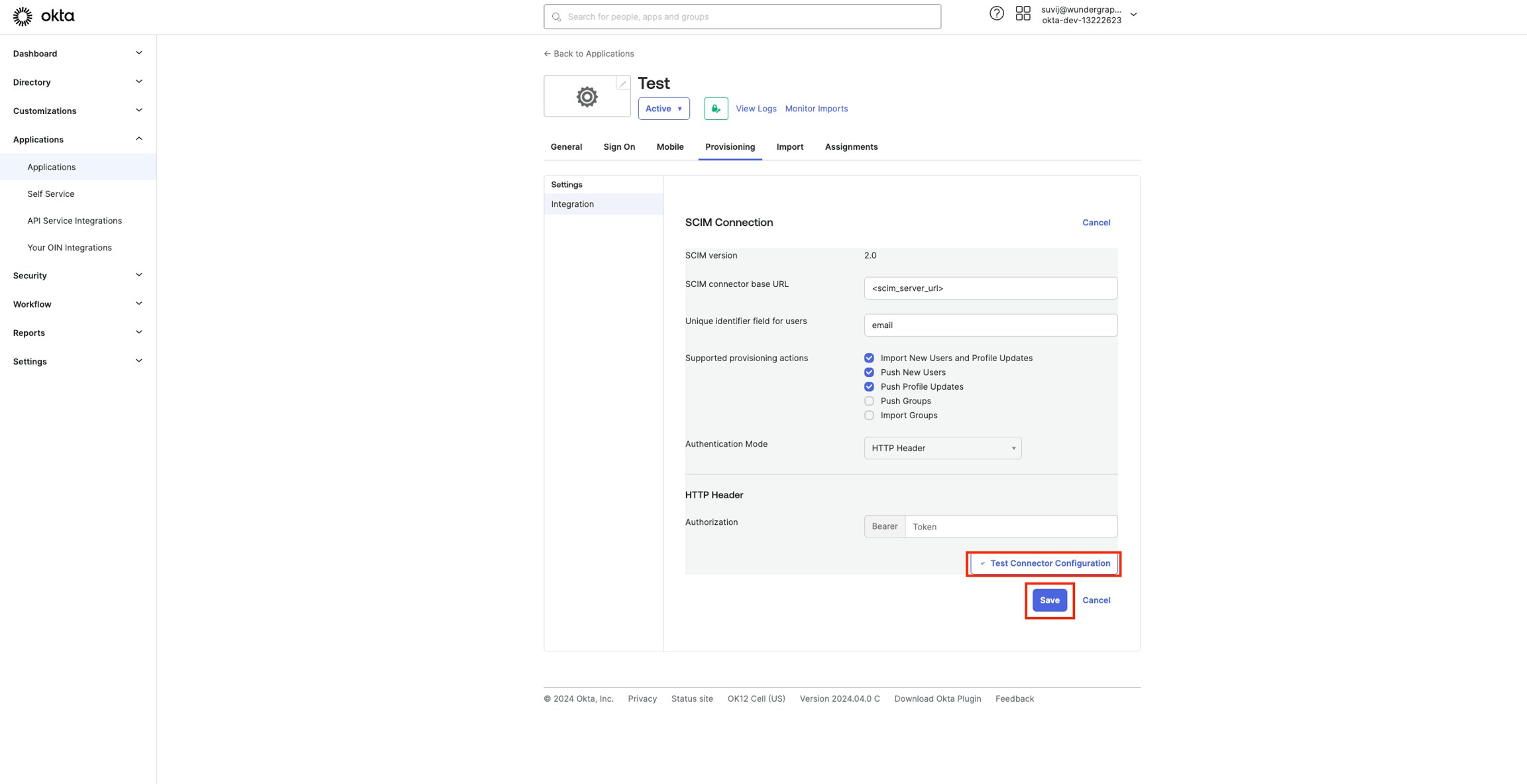 Click on Test Connector Configuration, a dialog will appear showing the connector is configured successfully, click Close.
 Click on **Save.**
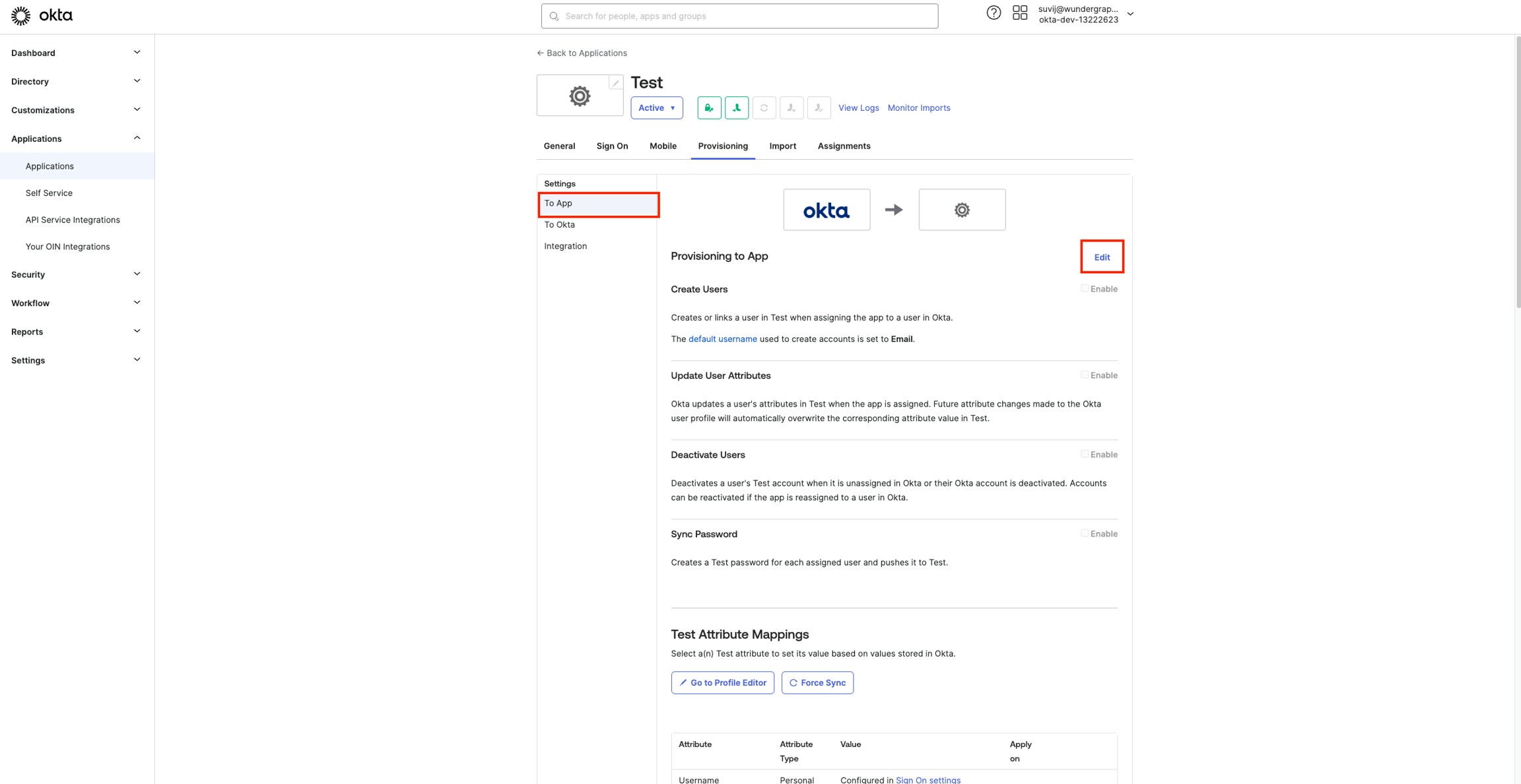
Navigate to the "**to App"** tab**, and** click on **Edit.**
Click on **Save.**
Navigate to the "**to App"** tab**, and** click on **Edit.**
 Enable **Create Users, Update User Attributes, Deactivate Users**and **Sync Password.**
Under **Sync Password** for **Password type**, select **Sync Okta Password.**
Enable **Create Users, Update User Attributes, Deactivate Users**and **Sync Password.**
Under **Sync Password** for **Password type**, select **Sync Okta Password.**
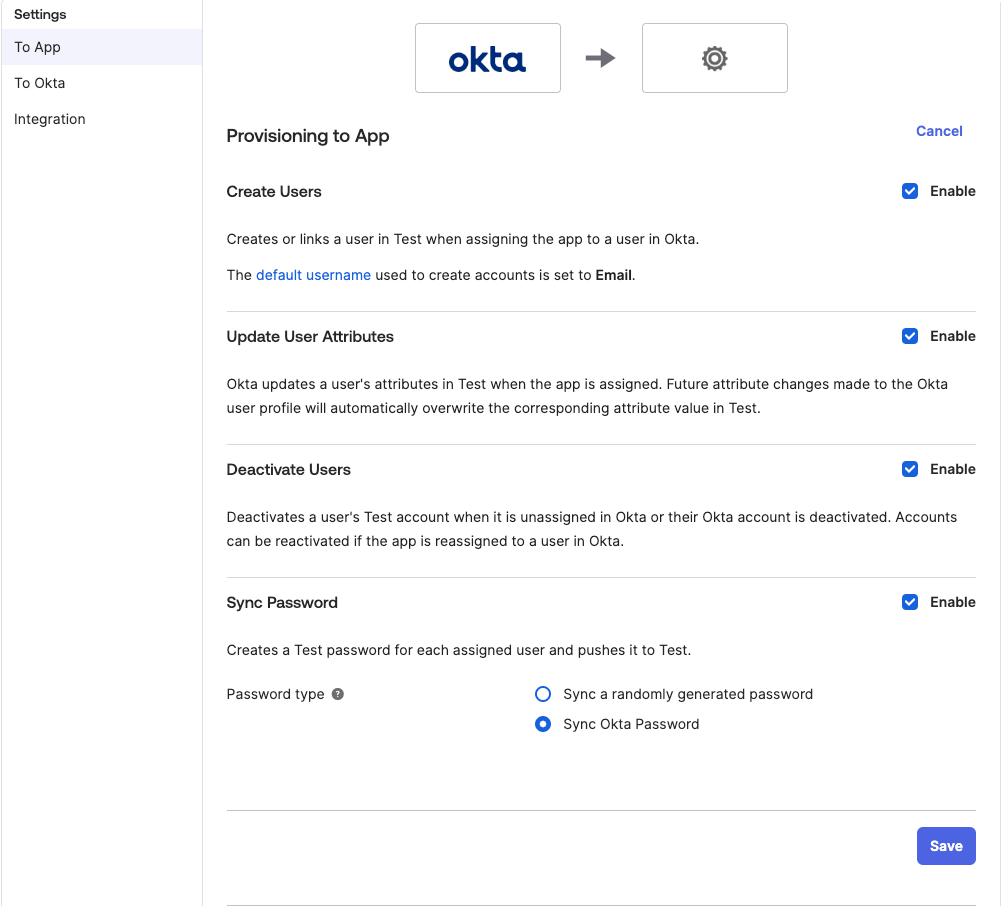 Click **save.**
Now you can navigate the Assignments tab and assign users/groups who should have access to WunderGraph Cosmo.
If you are using both **SSO with OIDC** and **SCIM**, please make sure that the users assigned in both apps are the same.
Click **save.**
Now you can navigate the Assignments tab and assign users/groups who should have access to WunderGraph Cosmo.
If you are using both **SSO with OIDC** and **SCIM**, please make sure that the users assigned in both apps are the same.